
NOTES
Each business can have individual settings on the E-invoice function. For example, if you have 2 businesses available under your account, you may enable E-invoice function for the first business and disable E-invoice function for the second business if necessary.
Step by step tutorial to enable E-invoice function
1. After you logged in to your account in Accent system, proceed to Business Management > Manage Business at the side menu.

2. In the table, you will see all the available businesses under your account.
3. If you wish to add new business to your account, you may click on the + Add New button at the top right corner. (However, the amount of businesses allowed for your account depends on the package you have subscribed on Accent.)
4. If you have existing business that you wish to edit its information, you may click on the Action dropdown button at the right column of your business record, in the dropdown, click on Edit.
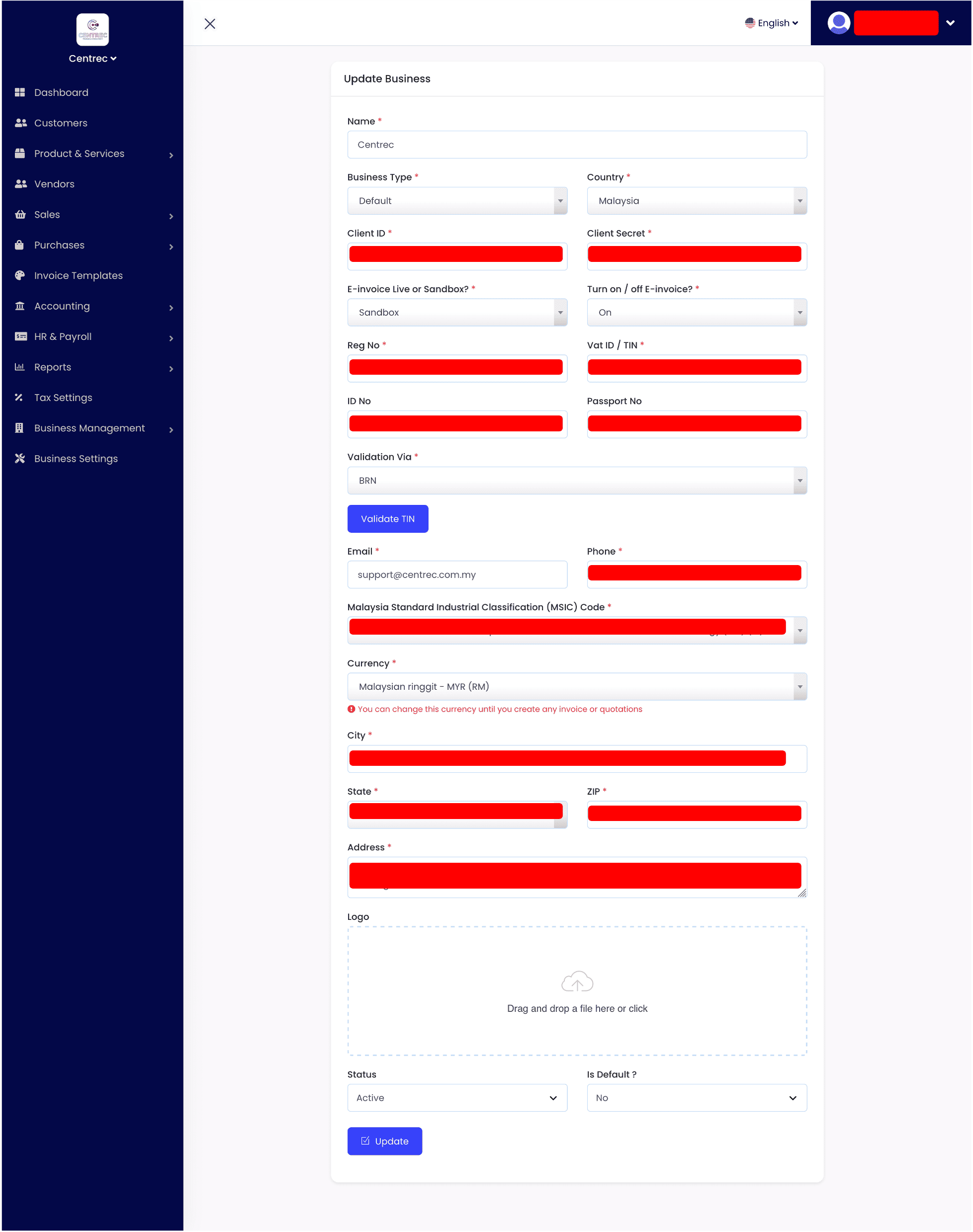
5. In the Business Details Settings page (as shown in the screenshot above), you may fill in or edit your business's information accordingly. Please make sure all fields marked with red asterick * are filled in with the correct information.
6. For more information on how to obtain the Client ID and Client Secret, please refer to this link. Please note that, you will be given 2 Client Secrets in the MyInvois portal for every ERP system created, you just simply choose one of the client secret and fill in to the Client Secret field in this business details settings in Accent. Once the Client ID and Client Secret has expired, you are required to generate a new set of Client ID and Client Secret in MyInvois portal and update the Client ID and Client Secret in this business details settings page too.
7. Please take note that Malaysia government has provided two environments for MyInvois Portal, the live / production environment (https://mytax.hasil.gov.my/) and the testing / pre-production environment (https://preprod-mytax.hasil.gov.my/), these two environments do not share the same set of Client ID and Client Secret, therefore please make sure that the Client ID and Client Secret you have filled into the business details settings are generated in the correct environment, and select the respective environment in the dropdown E-invoice Live or Sandbox?.
If you wish to perform testing on the e-invoice functions first, you can generate the Client ID and Client Secret through the testing / pre-production environment in MyInvois Portal and select Sandbox from the dropdown E-invoice Live or Sandbox?.
If you are ready to move to live environment and issue actual e-invoices, you can generate the Client ID and Client Secret through the live / production environment in MyInvois Portal and select Live from the dropdown E-invoice Live or Sandbox?.
8. In Accent system, you can freely turn on / off the E-invoice functions of the selected business by selecting "On" or "Off" under the dropdown Turn on / off E-invoice?. Once you have turned off the E-invoice function, you will not be able to submit the issued invoice to MyInvois Portal or to validate the issued invoice with MyInvois Portal. (Refer to this link for more information on how to submit and validate e-invoice on Accent.)
9. In order to issue a valid e-invoice to MyInvois Portal, it is mandatory to provide the correct TIN (income tax number, found in your MyTax portal account) and a respective registration number or ID number to validate the TIN (same applies to vendors / suppliers or customers).
For example: A registered business in Malaysia will have a business registration number that looks something like this (202003315437 (003190368-U)), in this case, you may fill in the registration number which is 202003315437 into the field Reg No, and don't forget to fill in your business's TIN in the Vat ID / TIN field, then, under the dropdown Validation Via, select BRN (which stands for Business Registration Number), lastly, you may click on the Validate TIN button to check the validity of the combination of your business's TIN and business registration number. If the combination is valid, the system will show a green success message stating Valid TIN at the bottom of the Validate TIN button. Only Valid TIN combination is able to issue an e-invoice to MyInvois Portal.
NOTE:
If you do not have business registration number, you can also validate your TIN through your IC number or Passport number, if you choose to validate via IC number, please fill in your IC Number into the field ID No and select NRIC under the dropdown Validation Via.
Same goes to Passport number, if you choose to validate via passport number, please fill in your Passport Number into the field Passport No and select PASSPORT under the dropdown Validation Via.
PLEASE DO NOT PUT IN ANY SYMBOLS (-) IN YOUR IC NUMBER OR PASSPORT NUMBER.
10. There might be a chance where your organisation does not have any business registration number or any ID number linked to the TIN. In this case, you may fill in NA in the Reg No field, then fill in your TIN in the Vat ID / TIN field, and select BRN under the dropdown Validation Via. Proceed to check the validity of the combination by clicking on the Validate TIN button. If the combination still not valid, you may contact our customer support for more assistance.
11. Validate TIN button only appears and works if the business is already been created in Accent system and has valid Client ID and Client Secret from MyInvois Portal.
Comments (0)