NOTES
This function allows you to share a link / url to your customers or vendors so that they can fill in their own details in a publicly accessible form without accessing to your business's dashboard that contains other sensitive data.
It is very useful when you have a lot of new customers or vendors details to key in and you wish to avoid the hassle by letting your customers or vendors to fill in their details themselves. Rest assured that your customers or vendors do not need to have an account on Accent to access the form, therefore it saves time for your customers and vendors.
Step by step tutorial to enable the public form for Customers
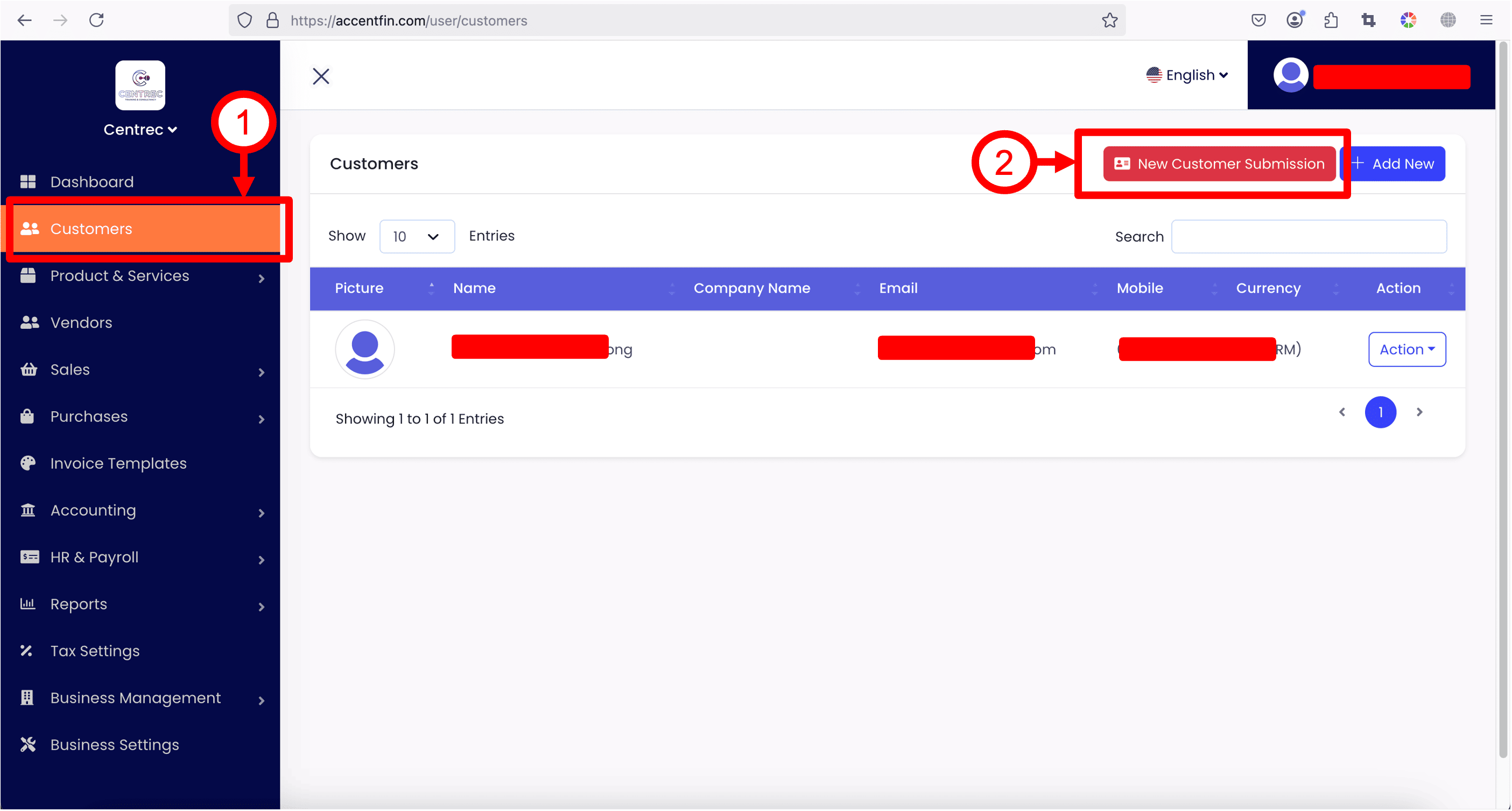
1. For Customers, you may proceed to Customers section located at the side menu.
2. Then click on New Customer Submission button.
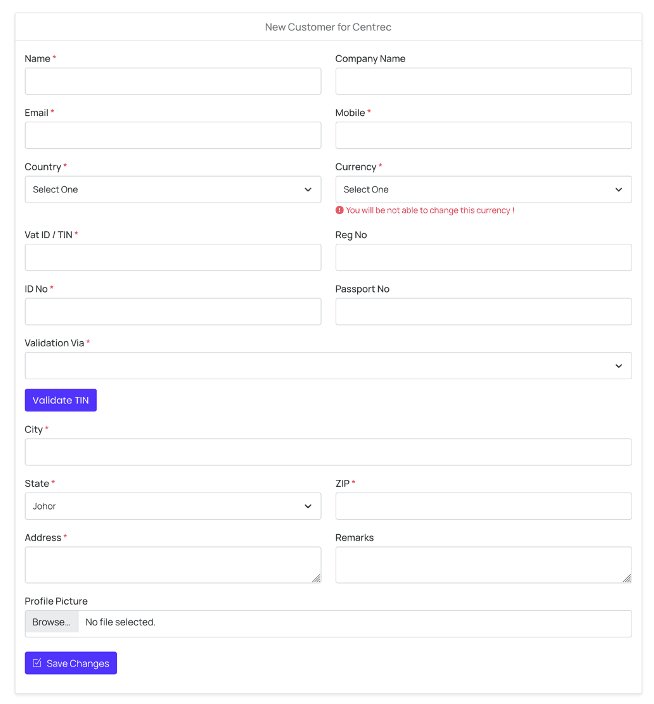
3. By clicking this button, you will be redirected to the following page (as shown in screenshot below). This page contains a publicly accessible form for your customer to fill in their details, you may share this page link / url to your customers, when they arrive at this page, they just need to fill in the necessary details and click Save Changes.
How to generate QR for customers to scan to fill in their details?
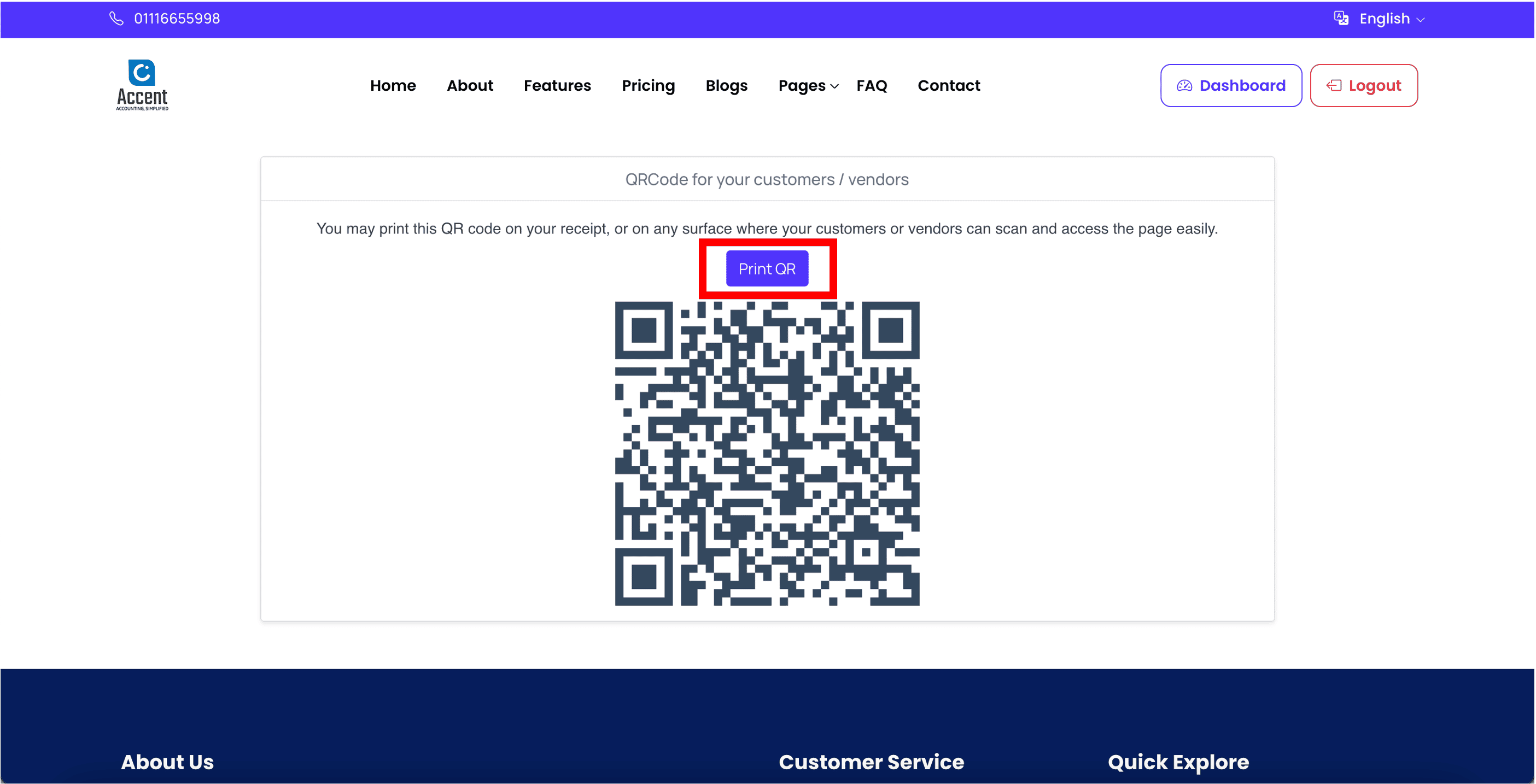
At this customer details form page, click on Get Page QR button. Note that you must be logged in to view this button.

The generated QR displayed on the screen is the QR that you can share with your customers for them to scan to fill in their details. You may click on Print QR button to print the QR onto your receipt or any surface for your customers to scan. Note that additional adjustments might be required as different receipts or surfaces have various sizes and designs.
Step by step tutorial to enable the public form for Vendors
1. For Vendors, you may proceed to Vendors section located at the side menu.
2. Then click on New Vendor Submission button.
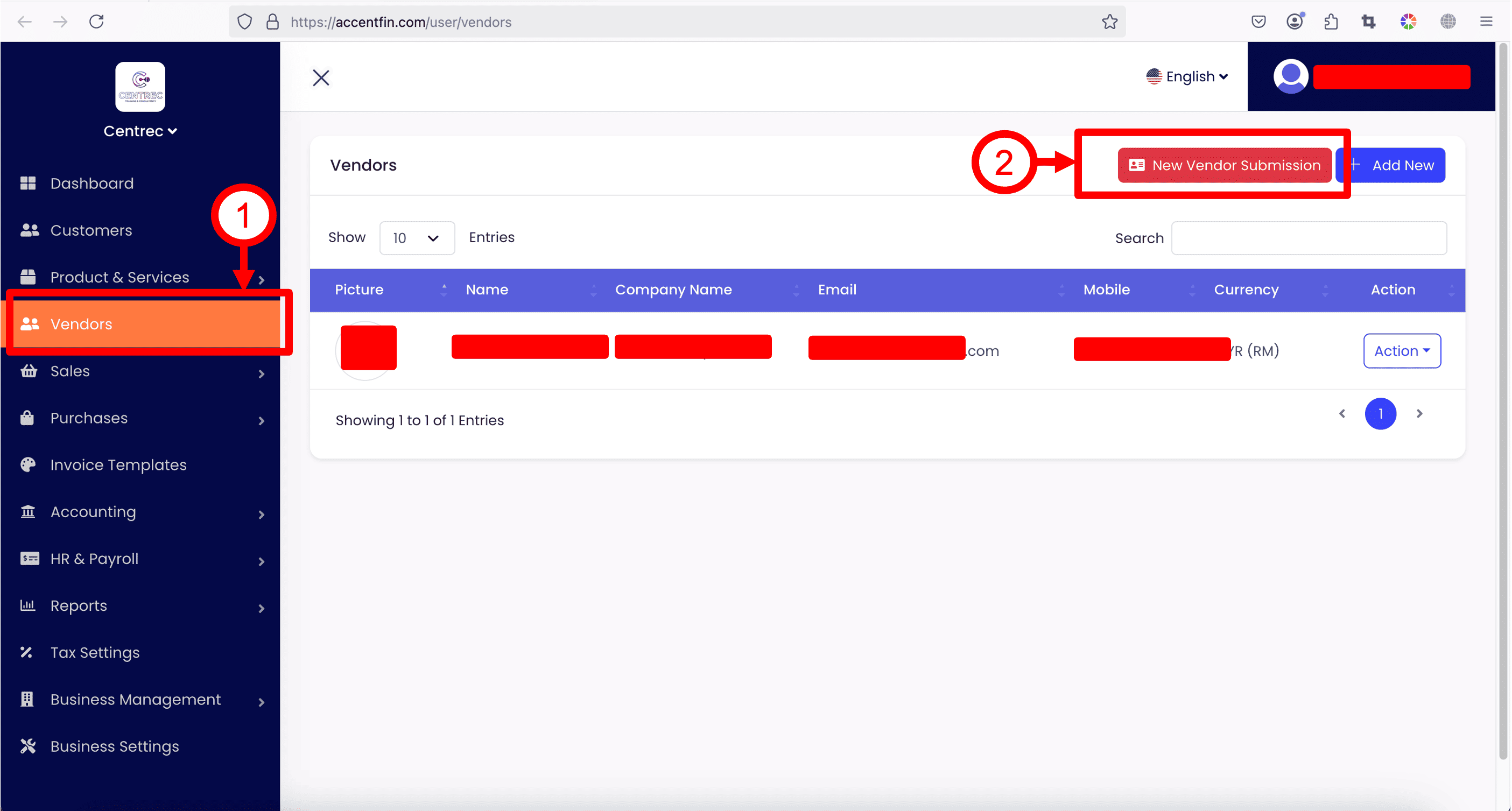
3. By clicking this button, you will be redirected to the following page (as shown in screenshot below). This page contains a publicly accessible form for your vendor to fill in their details, you may share this page link / url to your vendors, when they arrive at this page, they just need to fill in the necessary details and click Save Changes.
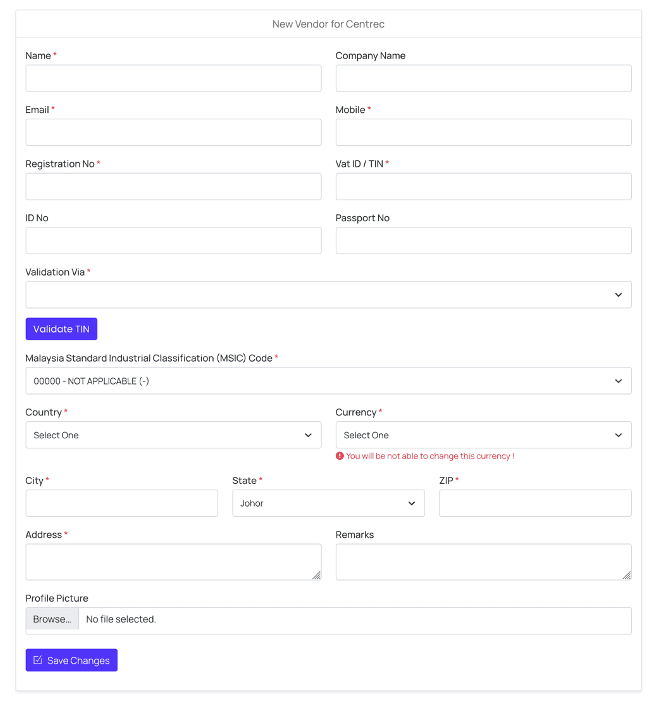
How to generate QR for vendors to scan to fill in their details?
At this vendor details form page, click on Get Page QR button. Note that you must be logged in to view this button.

The generated QR displayed on the screen is the QR that you can share with your vendors for them to scan to fill in their details. You may click on Print QR button to print the QR onto your receipt or any surface for your vendors to scan. Note that additional adjustments might be required as different receipts or surfaces have various sizes and designs.
Comments (0)